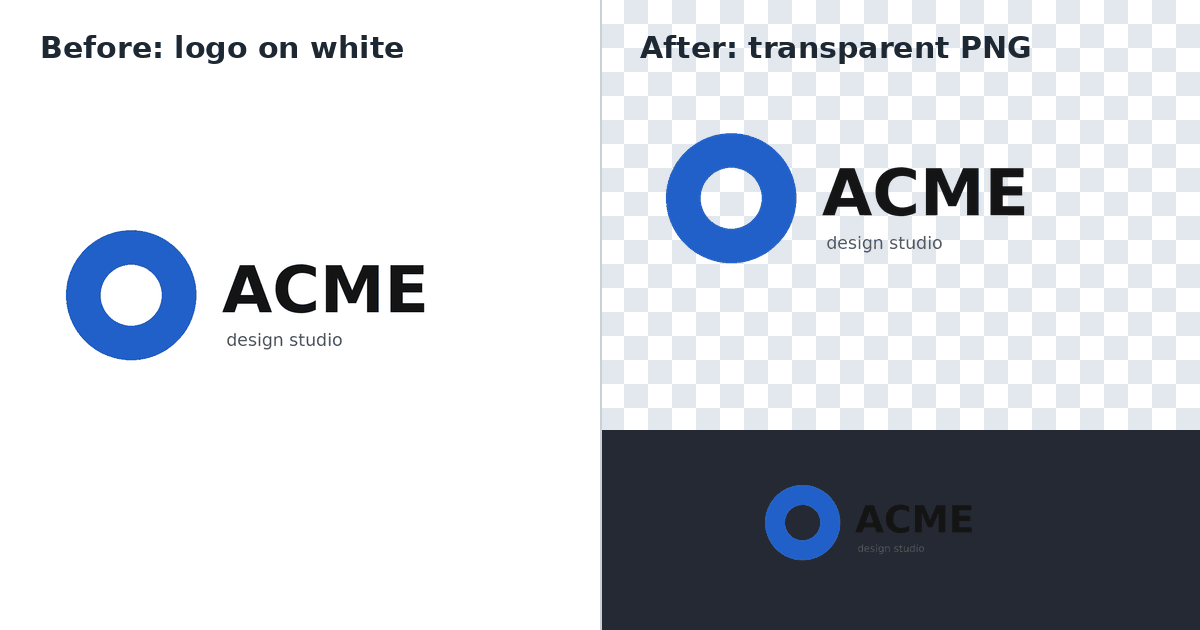
To remove a white background from a logo, add it to Make image transparent, keep White, press Make transparent and download the PNG. The white becomes see-through, the shapes and letters stay solid, and the logo sits cleanly on any colour. It's free, runs in your browser and your file is never stored.
Step by step
- Open Make image transparent and choose your logo. A PNG or JPG works, and so does a screenshot of the logo.
- Under Colour to make transparent, choose White. Find it for me also works when the background is one plain colour: it uses the colour around the edges of the image.
- Under Where, keep Everywhere, holes too, so the white inside letters like O, A and B disappears as well. If your logo has white parts that should stay white, such as white letters on a coloured badge, choose Only the background around it instead.
- Press Make transparent and download the PNG.
- Check it on a dark background before you use it (see below).
Why not use an AI background remover?
AI background removers are built for photos: they look for a person, a product or a pet and cut it out. A logo is flat graphics, often with thin lines and small text, and that's where they slip. When we ran a simple logo through FileFleet's own AI tool, Remove background, parts of the letters came out semi-transparent, which looks patchy on a coloured page.
Make image transparent works differently: it removes one colour exactly. In the same test, every letter stayed fully solid, the inside of the ring was cleared, and the edges had no white halo. The test results are on the tool's page.
Use Remove background when the logo is part of a photo, such as a sign on a shop front or a printed mug, rather than a flat image on a white background.
If something doesn't look right
- Specks of white are left around the edges. This happens most with JPG logos, which have faint compression marks. Move Tolerance up a few steps and run it again.
- Pale parts of the logo disappeared. Light grey or pastel details are close to white. Move Tolerance down and run it again.
- The logo is on paper, not on a screen. For a photo or scan of a printed logo, choose Paper: it evens out shadows on the sheet before removing it.
- White parts inside the design vanished. Choose Only the background around it, which only removes the white connected to the edges of the image.
Check it on a dark background
A logo made for white paper often has black or dark grey text. Once the white is gone, that text disappears on a dark website, app or email signature, as the cover picture of this guide shows. Open the PNG on a dark page before you use it. If the text vanishes, keep the logo for light backgrounds only, or ask whoever designed it for a light version, often called a reversed or white version.
Save it as a PNG, not a JPG
JPG can't store transparency, so a JPG always has a solid background, usually white again. FileFleet saves the result as a PNG, which websites, documents, email signatures and design apps accept. If you need the logo smaller, Resize image keeps PNG transparency and only changes the pixel size.
FAQ
Is it free? Yes. There's no account, no daily limit and no watermark, and the logo is processed in your browser, never stored.
Will the white inside the letters disappear too? With Everywhere, holes too, yes, which is usually what you want: the inside of an O or an A should show the page behind it. To keep white parts of the design, choose Only the background around it.
My logo has a coloured background, not white. Does this still work? Yes. Choose Find it for me, or Choose a colour and pick the background colour. Any one plain colour can be made transparent.
Can I do several logos at once? Yes. Add them all: each one comes back as its own PNG, together in one ZIP.