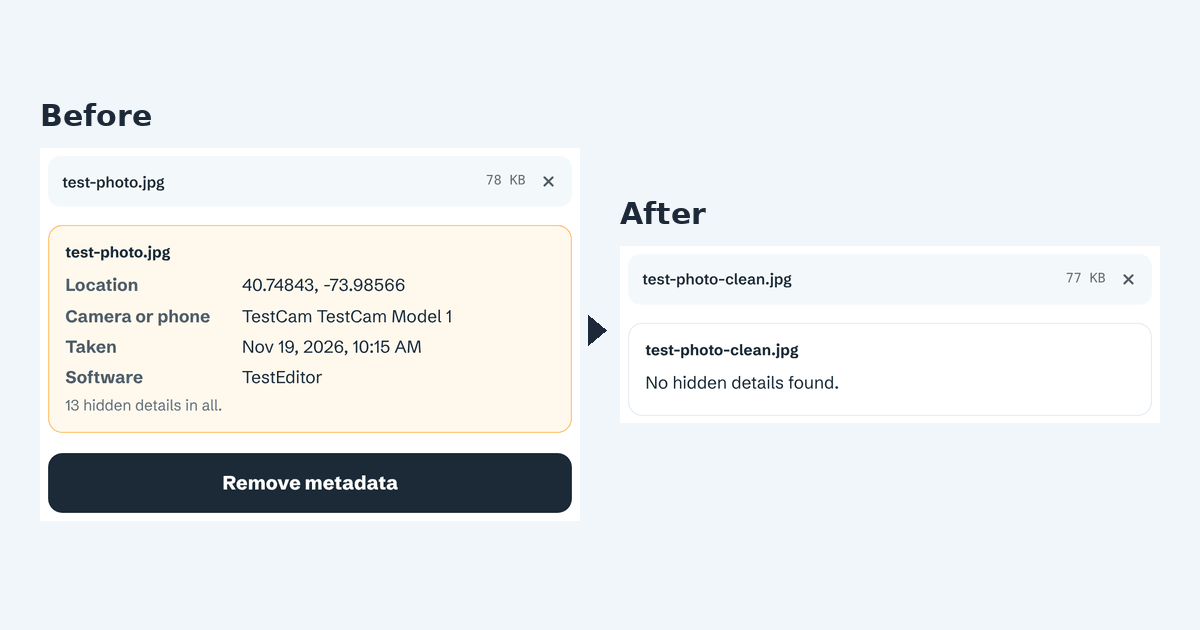
To remove photo metadata on a Mac, open FileFleet's Remove photo metadata tool in Safari or any other browser, add the photo, click Remove metadata and download the clean copy. You can then check the new file in Preview: if Show Location Info is greyed out, the photo has no location in it. If you use Hide Location in the Photos app instead, still check the file you actually send.
Step by step
- Get the photo as a file. If it's in Finder (Downloads, Desktop, an AirDrop), you're ready. If it's in the Photos app, select it and choose File > Export > Export [number] Photos, click Export, choose a folder, then click Export again, as described in Apple's guide to exporting from Photos on Mac.
- Open Remove photo metadata and drag the photo onto the page, or click Choose photos. You can add more than one.
- Read what it gives away. Each photo gets a list of what it carries, such as Location, Camera or phone, Taken and Software.
- Click Remove metadata. When it says Your file is ready, click Download. With several photos, each clean copy has its own Download button, or you can download them all as one ZIP.
- Use the new file. In our test, a photo called test-photo.jpg came back as test-photo-clean.jpg, so the original stays as it was and the clean copy is easy to tell apart.
There's no account, no watermark and no daily limit, and your files are never stored.
In our test (November 2026), a JPG with a GPS location, camera name, capture date and editing software listed 13 hidden details. The downloaded copy showed No hidden details found in View photo metadata, and its picture was pixel-for-pixel identical to the original.
Check the clean copy in Preview
Preview, the Mac's built-in image viewer, can show you whether a file still has a location. Open the photo in Preview and choose Tools > Show Location Info. Apple's guide See where a photo was taken using Preview on Mac explains: "If Show Location Info appears in gray, the image doesn't contain location information."
To see everything that's left, not just the location, add the clean copy to View photo metadata. Make sure you open the downloaded copy, not the original: they look the same.
What Hide Location in Photos does
The Photos app lets you select photos and choose Image > Location > Hide Location or Revert to Original Location (Apple: Add titles, captions, and more to photos and videos on Mac). Apple describes this as the way to remove location metadata from photos in your library.
As of November 2026, though, those Apple pages don't say how it applies to the files you export or share from a Mac. Apple's Personal Safety guide on location metadata does warn: "When photos and videos that include location metadata are shared, the people you share them with may be able to access the location metadata and learn where it was taken." So whichever way you remove a location, check the actual file in Preview or FileFleet before you send it.
Why photos carry metadata
Cameras and phones save details alongside the picture: often the GPS position, the device model, the date and time, and the software that last saved the file. You don't see them when you look at the photo, but they travel with the file when you email it, upload it to a form or share a cloud link.
Removing them doesn't change what's visible. A street sign, a parcel label or a view from a window can still show where a photo was taken, so check the picture itself too.
What happens to JPG, PNG and HEIC photos
- JPG and PNG keep their exact picture quality: FileFleet removes the hidden details and leaves the picture untouched.
- HEIC photos (the iPhone's usual format) are saved as high-quality JPGs. Keep the original if you need the HEIC version.
- Orientation is kept: FileFleet keeps the one tag that says which way is up, so the photo isn't turned on its side. We checked this with a test photo tagged to be rotated, and the tag was still there in the clean copy.
Troubleshooting
Show Location Info is still available in Preview. You've probably opened the original. Look for the file ending in -clean, or check your browser's downloads list for where it was saved.
Finder still shows a date. Finder's Created and Modified dates belong to the file on your Mac, not to the hidden camera details inside it. The capture date ("Taken") is what FileFleet removes.
Nothing was found to remove. Not every photo has a location, or any hidden details at all.
The Remove metadata button doesn't respond. Make sure the photo has finished adding and that JavaScript is turned on in your browser.
FAQ
Can I remove photo metadata on a Mac without installing anything? Yes. FileFleet works in your browser, so there's nothing to install, and your files are never stored.
Does removing metadata change my original photo? No. You get a separate clean copy. The original in Finder or in your Photos library keeps everything it had.
Does Preview remove metadata? Apple's Preview guide covers viewing a photo's location with Tools > Show Location Info. It doesn't describe removing it, so use the clean copy from FileFleet and check it in Preview.
Can I clean several photos at once? Yes. Add several photos to Remove photo metadata and click Remove metadata once. In our test with two photos, each clean copy had its own Download button, plus Download all (2) as ZIP.
How do I send several cleaned photos together? Follow How to send photos without giving away your location: clean, compress if needed, then put them in one ZIP.